For Google TV and Android TV
Your home, on the big screen.
A calm home screen for the TV you already have. Connect arca to bring your photos, videos and music to the big screen.
Free for personal use · No ads · No account
Home works on its own. Add arca for photos and music.









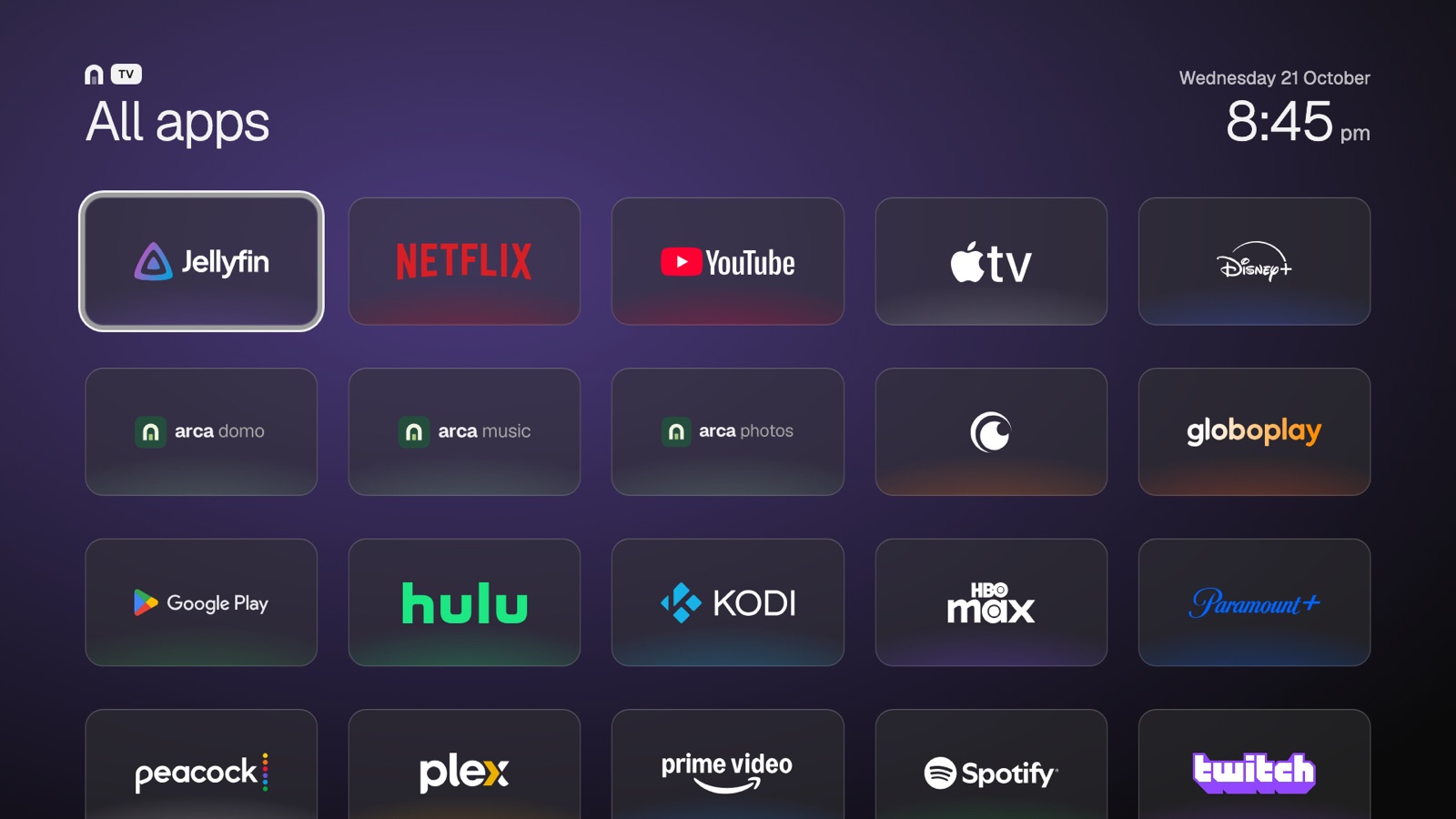
Home screen demo · Sample content
Home screen · Works without a hub
A quieter place
to turn the TV on.
Your apps, the time and the weather. Add Jellyfin to continue what you were watching. No ads or recommendation rows added by arca TV.
Keep the TV you know.
Picture, sound and inputs stay close. Open your favourite apps from one shelf. Switch back through arca TV → Home screen → Original whenever you want.
Room for your home, too.
With your own domo server, see the air in each room and control supported purifiers and your robot vacuum. Entirely optional.
A closer look at the details
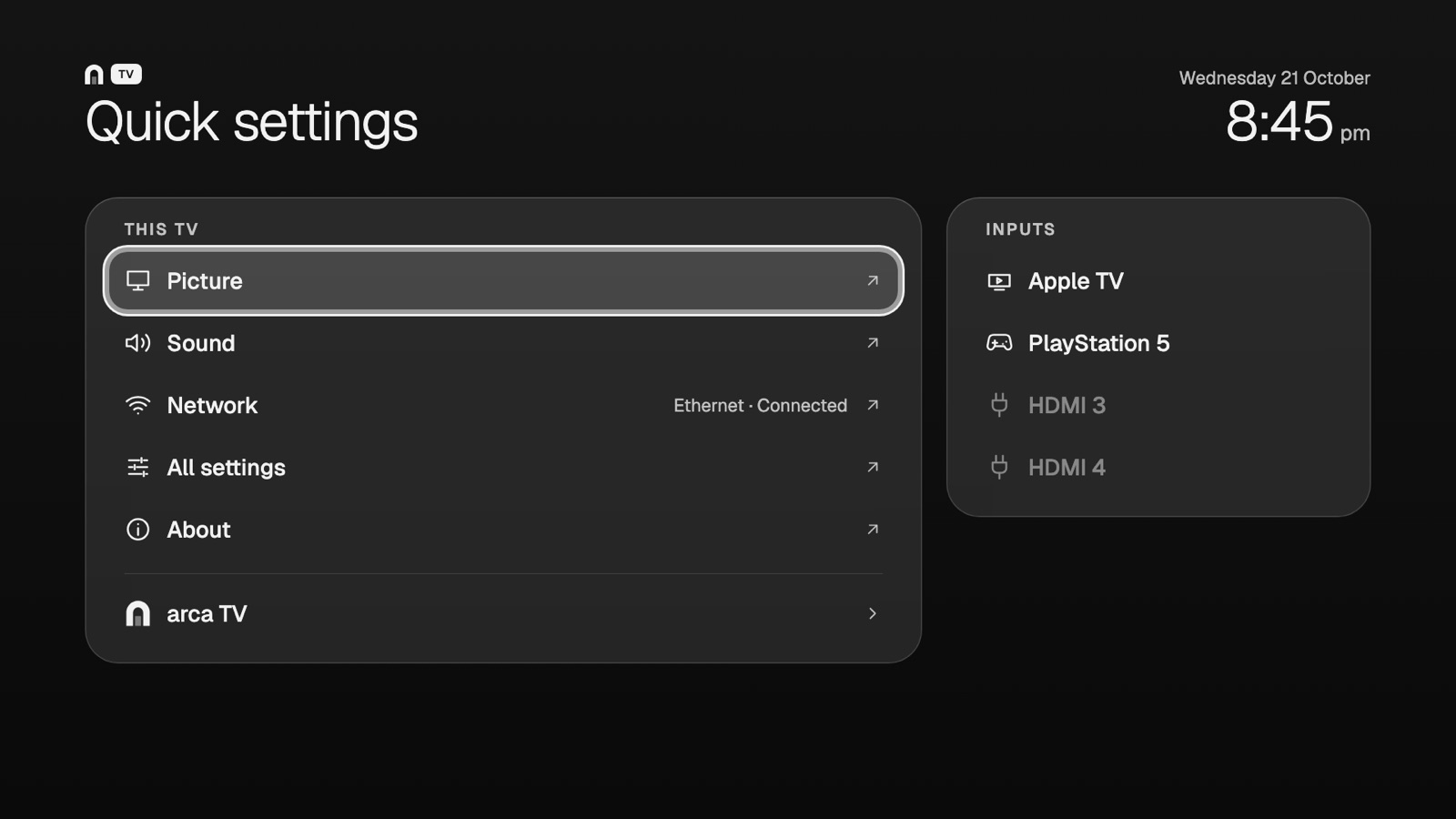
Your TV controls
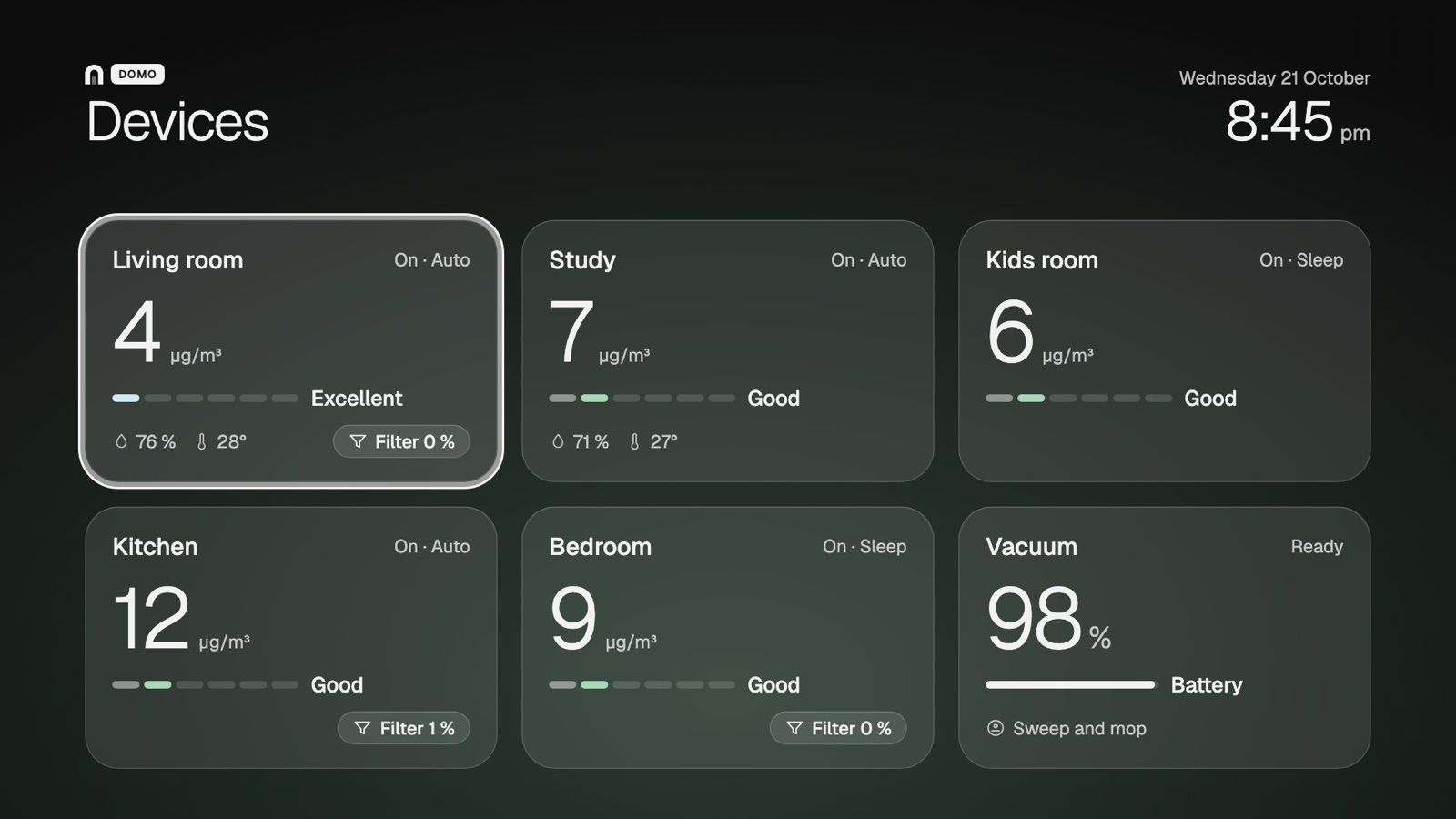
arca domo · Optional
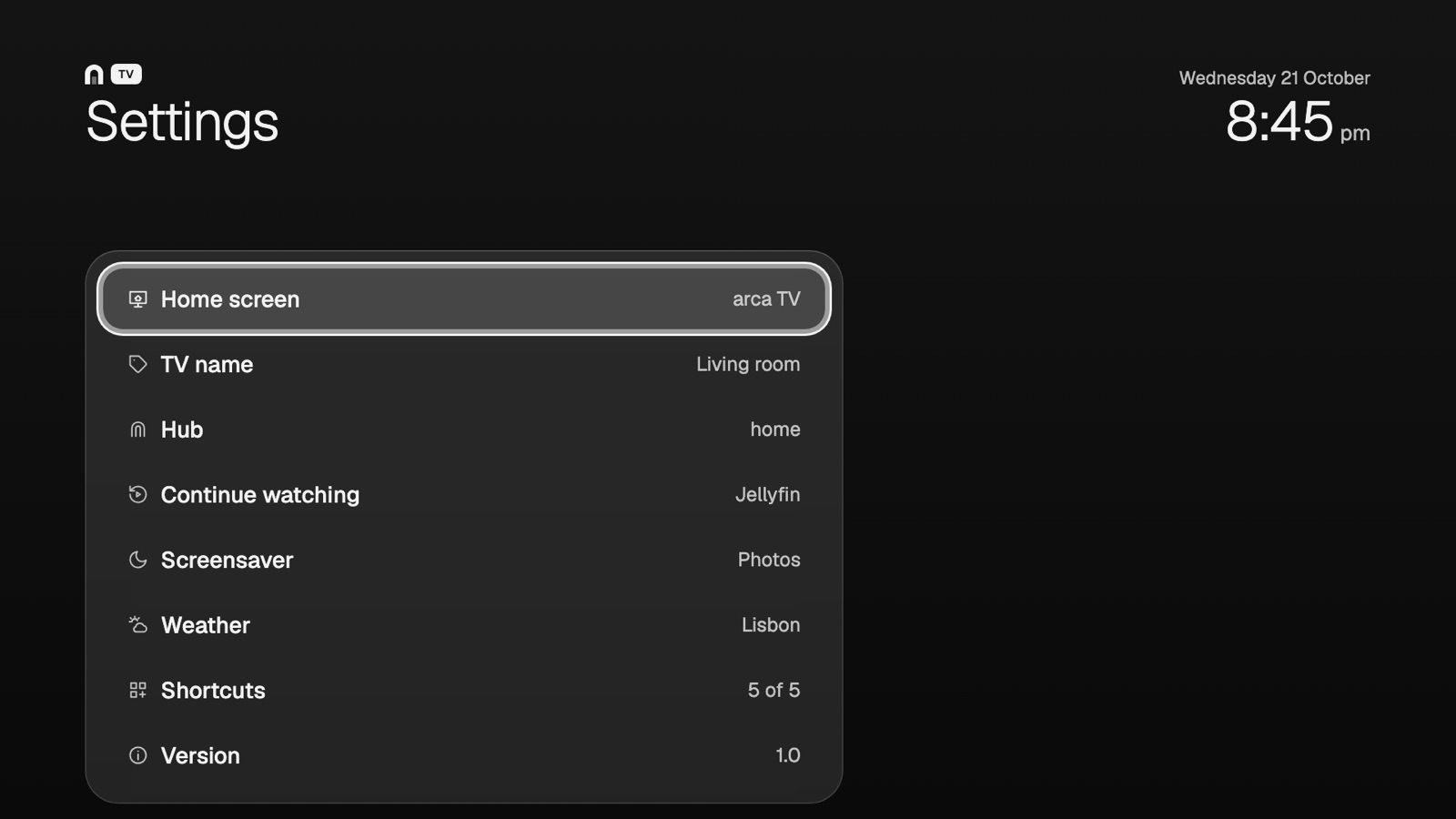
A few simple settings
 With arca
Your library.
Now on your TV.
arca keeps your files on devices you own. Bring your photos and music together on a computer at home, then pair your TV to enjoy them from the sofa.
A computer you already have can be your hub. Your TV plays from it without changing your library.
Meet arcaPhotos, music and the photo screensaver need an arca hub, kept on while you play.
Already have arca? Connect your TV.
- Keep your hub and TV on the same network. In the hub’s Settings → Local network, enable Allow HTTP connections. TV playback uses this local connection.
- Link a phone album to a hub folder, or choose Enable gallery in an existing folder’s ⋯ menu for photos. For music, choose Enable music library in a hub folder’s ⋯ menu.
- On the hub, open Settings → Authorized devices → Manage devices and generate a device pairing code. On the TV, open Settings → Hub; it finds the hub and opens the code screen. Enter the six digits, or choose Enter address if discovery finds nothing.
- arca Photos and arca Music become available for the libraries your hub exposes. Keep the hub on while the TV plays them.
Photos & memories · With arca
Some things deserve
a bigger screen.
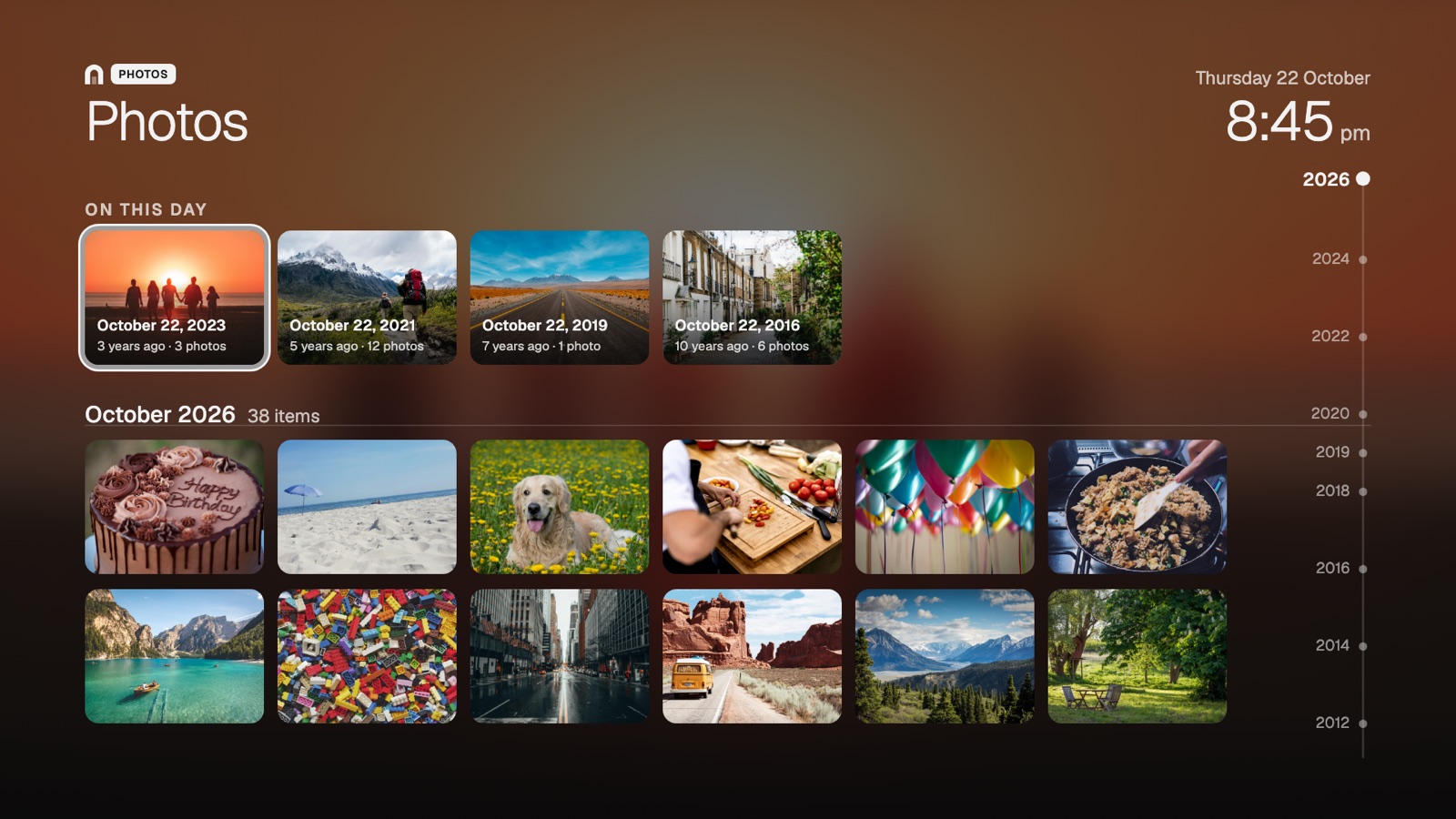
The holiday you still talk about. An ordinary afternoon you’d forgotten. Browse your photos and videos by month, or revisit this day in years gone by.
A way back through the years.
One continuous timeline, with a year scrubber and On this day memories when your library has them. Videos play right in the viewer.
A screen worth leaving on.
When arca TV rests, your photos become a gently moving screensaver, mixing years from across your library. It dims itself at night.
Music · With arca
Put an album on.
Settle in.
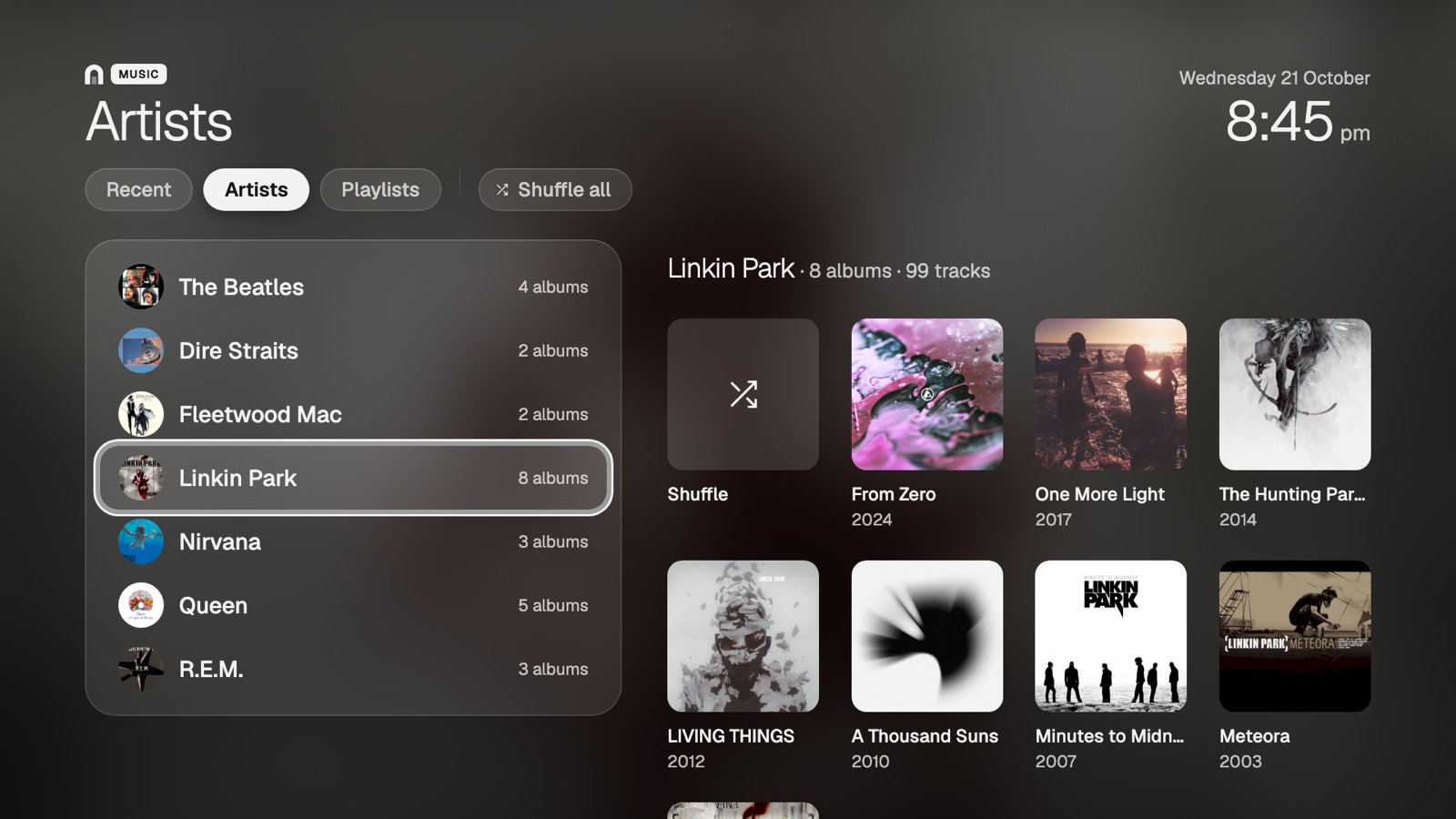
Your artists, your albums, your playlists. Pick up a recent favourite or shuffle your library, all with the TV remote.
Music streams from your arca hub. The cover fills the player while you listen. No recommendations to get through before you reach your own collection.
Install
Make yourself at home.
For Google TV and Android TV running Android 9 or newer. You’ll need a computer on the same network and access to the TV’s debugging options. Setup varies by TV; LG webOS and Samsung Tizen are not supported.
In the examples below, replace <TV_IP> with your TV’s IP address before running commands.
On the TV
Settings → System → About, press Android TV OS build seven times. That opens Developer options, where you turn on USB debugging so your computer can install apps. Note the TV’s IP address under Network & Internet.
On your computer
Open an AI assistant (Claude Code, Codex or Antigravity) and say:
Install arca TV (github.com/satoshi-ltd/arca-tv) on my TV at <TV_IP>. I live in Tokyo.Replace <TV_IP> with your TV’s IP address and Tokyo with your city.
Use an assistant with terminal access. It builds and installs the app, asking before installing missing tools. Accept the TV’s debugging prompt with Always allow. You can mention a Jellyfin or domo server in the same request.
Back on the TV
Open arca TV → Home screen → arca TV. Accept the debugging prompt with Always allow. The welcome lets you connect an arca hub or start without one.
On the TV
Open Settings → System → About and press Android TV OS build seven times. In Developer options, turn on USB debugging, then note the TV’s IP address under Network & Internet. Menu names vary by TV.
Tools
A JDK (17 or newer), the Android SDK command-line tools and
adb. On a Mac:brew install --cask temurin android-commandlinetools android-platform-tools sdkmanager "build-tools;34.0.0" "platforms;android-34"
Build
git clone https://github.com/satoshi-ltd/arca-tv && cd arca-tv && ./build.sh
The first run creates
config.yaml. Optionally add your city, Jellyfin or domo settings locally, then run./build.shagain. The result isArcaTV.apk.Install
adb connect <TV_IP>:5555
adb devices
adb -s <TV_IP>:5555 install -r ArcaTV.apk
When the TV asks Allow USB debugging?, tick Always allow and accept. Wait until the TV appears as device before installing.
On TCL, also allow arca TV to start:
adb -s <TV_IP>:5555 shell "appops set com.satoshilimited.tv AUTO_START allow || appops set com.satoshilimited.tv APP_AUTO_START allow"
Back on the TV
Open arca TV → Home screen → arca TV. Accept the debugging prompt with Always allow. The welcome lets you connect an arca hub or start without one.
Keep the project folder and arca-tv.keystore: updates need the same signing key. Paste service tokens into config.yaml yourself; never put them in an assistant chat.
Want your old home screen back? arca TV → Home screen → Original, and it’s there just as it was.
Before you start
A few good
questions.
Do I need an arca hub?
Home, your apps and the weather work without one. Connect a hub with a photo or music library to use arca Photos, arca Music and your photos as a screensaver. The TV streams from the hub, so keep it on and reachable while you watch or listen.
What do I need to run arca?
A computer or server you control can be your hub; dedicated hardware is optional. arca keeps shared folders and their history there and syncs complete copies to your other devices. The TV is a player: it reads the library without changing your files.
What changes on my TV?
arca TV becomes your home screen and screensaver and disables selected built-in apps. It does not uninstall them or require root. Choose arca TV → Home screen → Original to restore the recorded home screen and re-enable apps it disabled. After repeated crashes, a watchdog attempts the same recovery.
Does anything leave my home?
Your photos and music stream directly from your hub over your network. Weather and outdoor air requests send your selected city’s coordinates to Open-Meteo; city searches send the name you enter. Like any online request, these expose your public IP to the service. arca TV adds no analytics. Android TV and the apps you open have their own network activity and privacy policies.
Which TVs does it support?
arca TV targets Google TV and Android TV with Android 9 or newer. Installation needs debugging access; menus and manufacturer restrictions vary. It does not run on LG webOS or Samsung Tizen.
Is it free?
Free for personal, non-commercial use under the PolyForm Strict licence.